Stream overlays for Twitch Studio
CrispOverlays works in Twitch Studio as a browser source. Add one URL and every overlay in your stream — lower thirds, tickers, alerts, timers, webcam frames — shows up on top of your scene.
After that you never touch Twitch Studio again to change graphics. Edit text, colours and data in CrispOverlays and the change appears on stream instantly, without refreshing the source.
How to add overlays to Twitch Studio
- Step 01
Copy your browser source URL from CrispOverlays.
- Step 02
In Twitch Studio, edit a scene and add a layer → Embed Webpage.
- Step 03
Paste the URL and size it to the full canvas.
- Step 04
Go live. Edits appear instantly.
Tip: use 3840 × 2160 for 4K streams, or switch your stream to vertical (1080 × 1920) for TikTok LIVE and Shorts.
Popular overlays for Twitch Studio
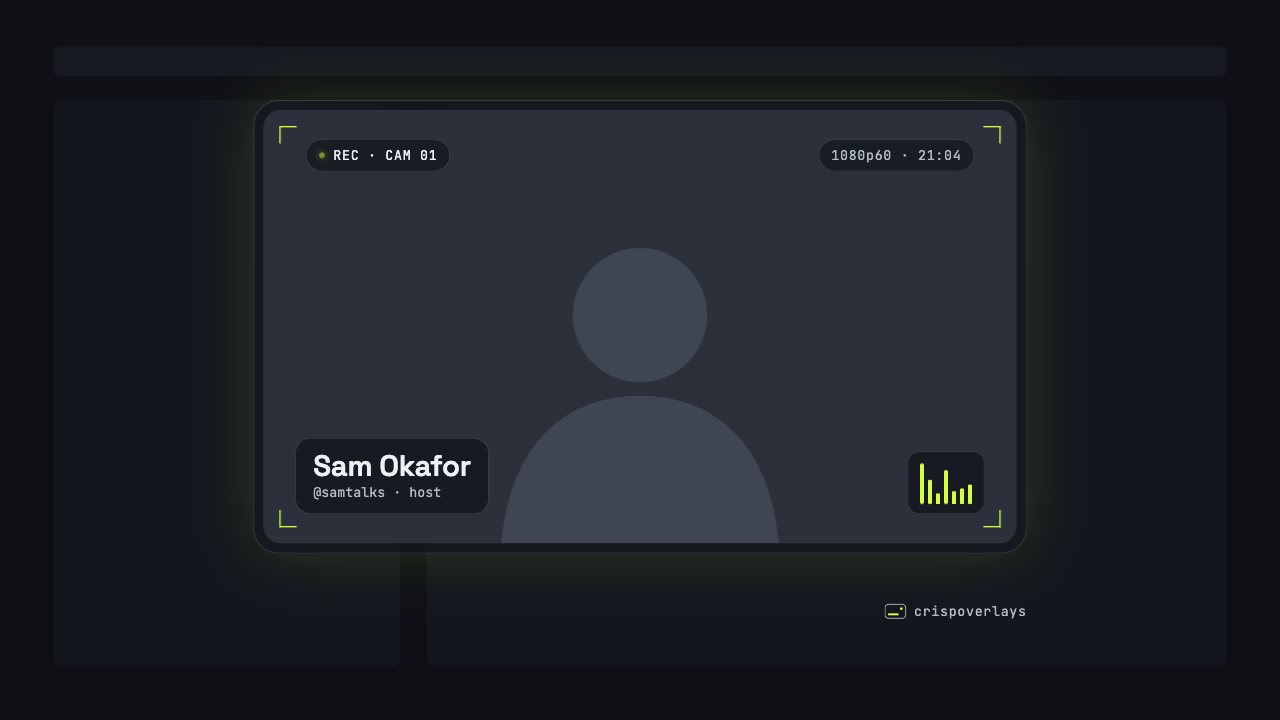
Nightglass webcam frame
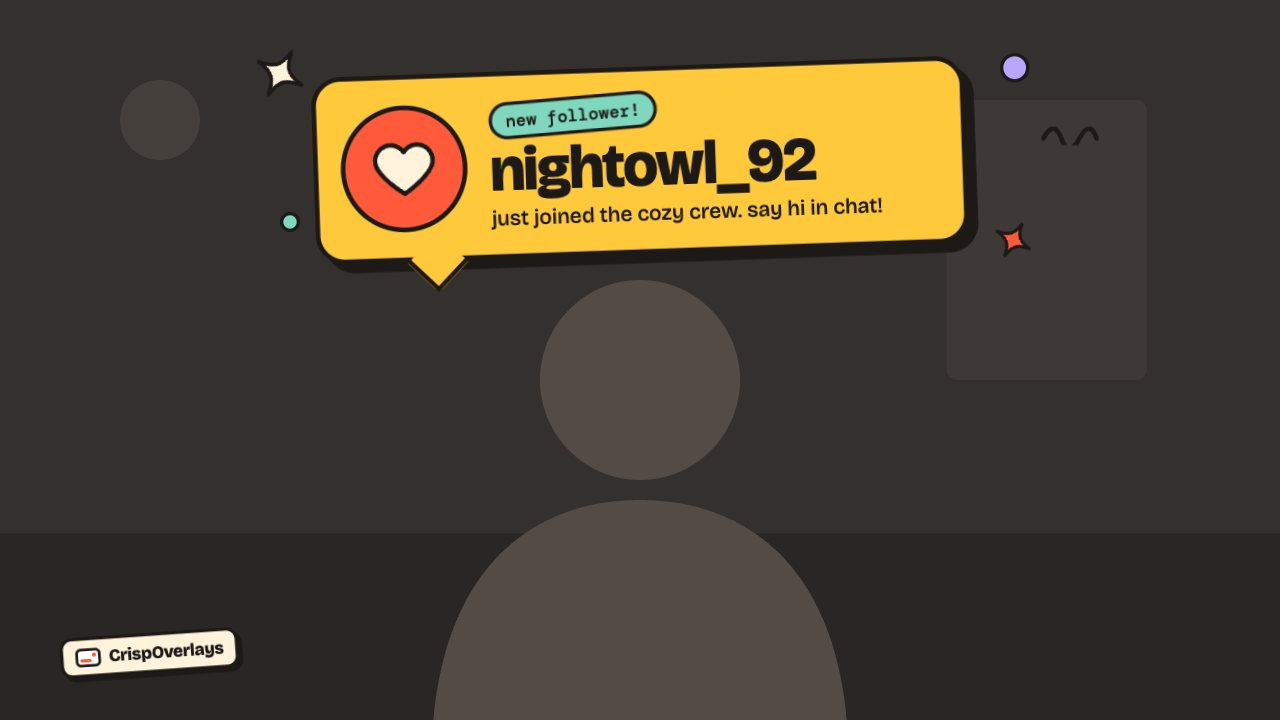
Sticker stream alert
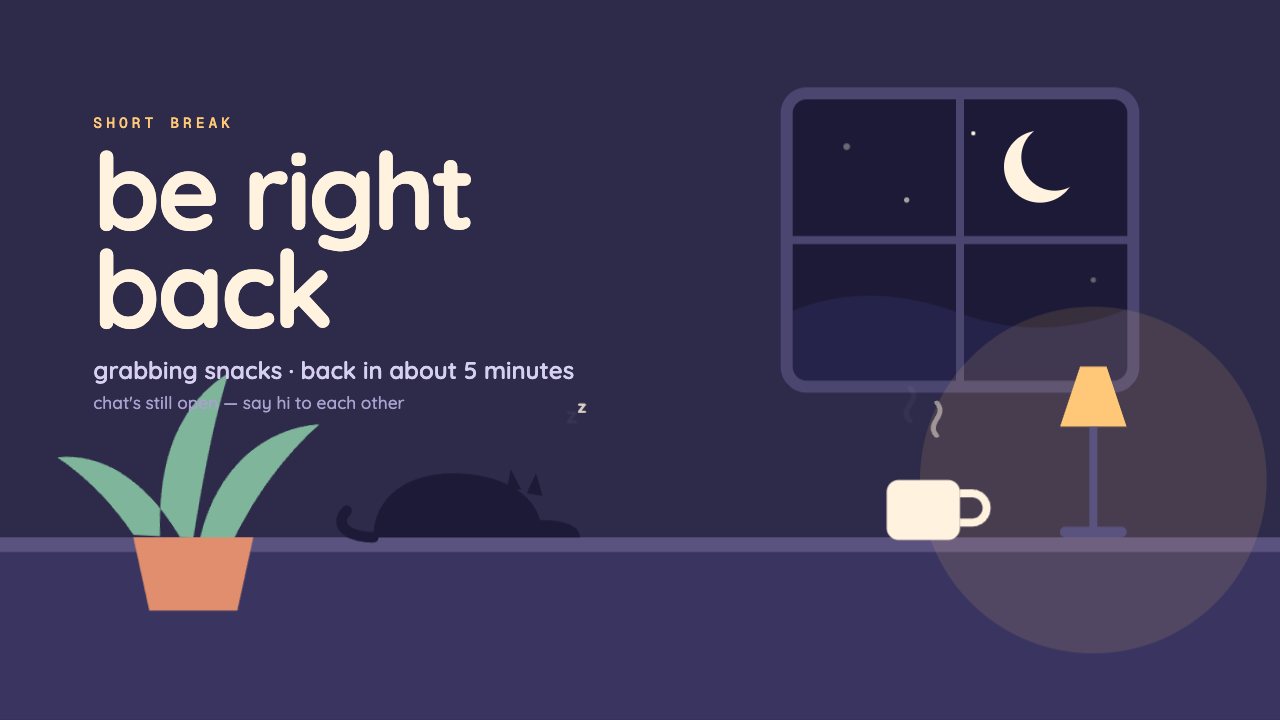
Cozy Room brb screen
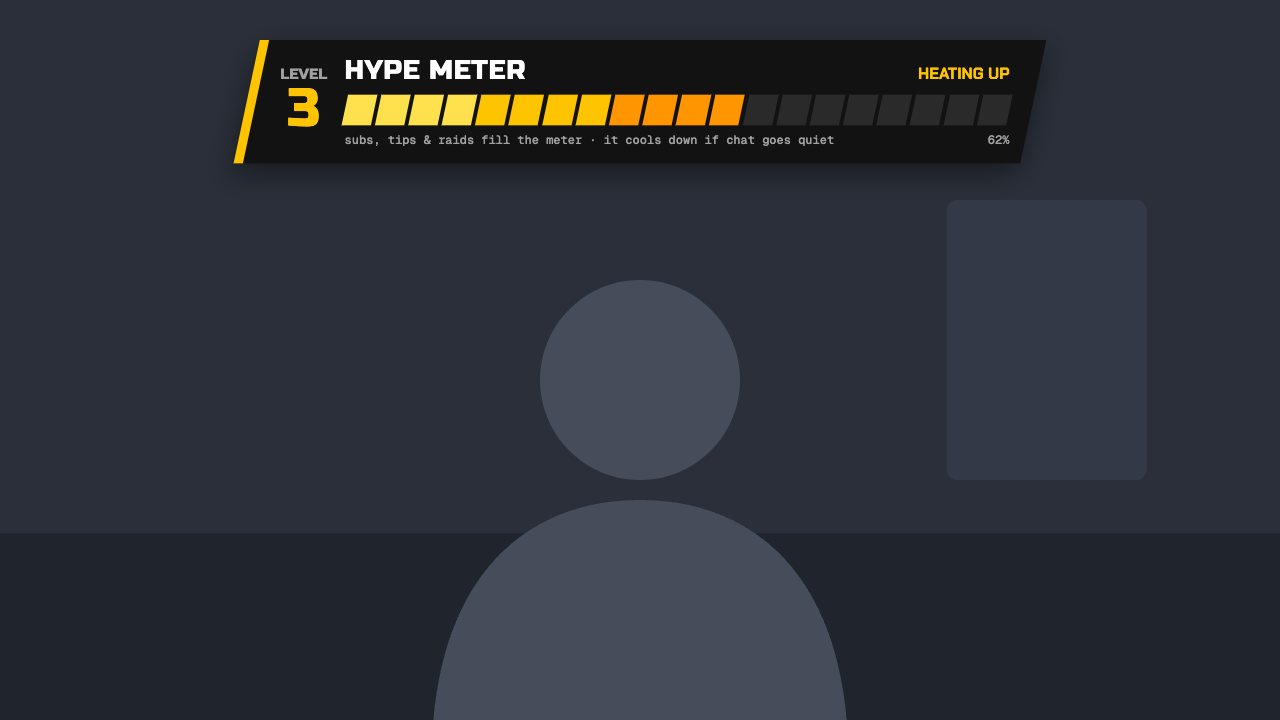
Turbo hype meter
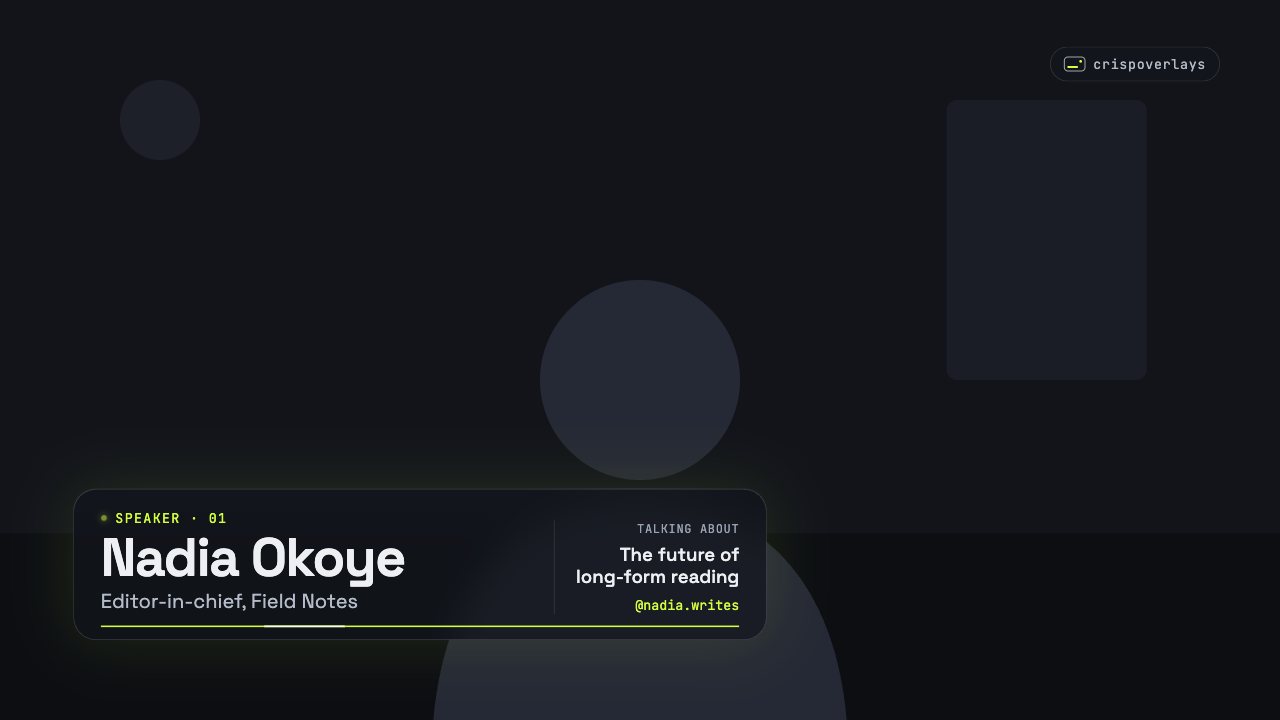
Nightglass lower third
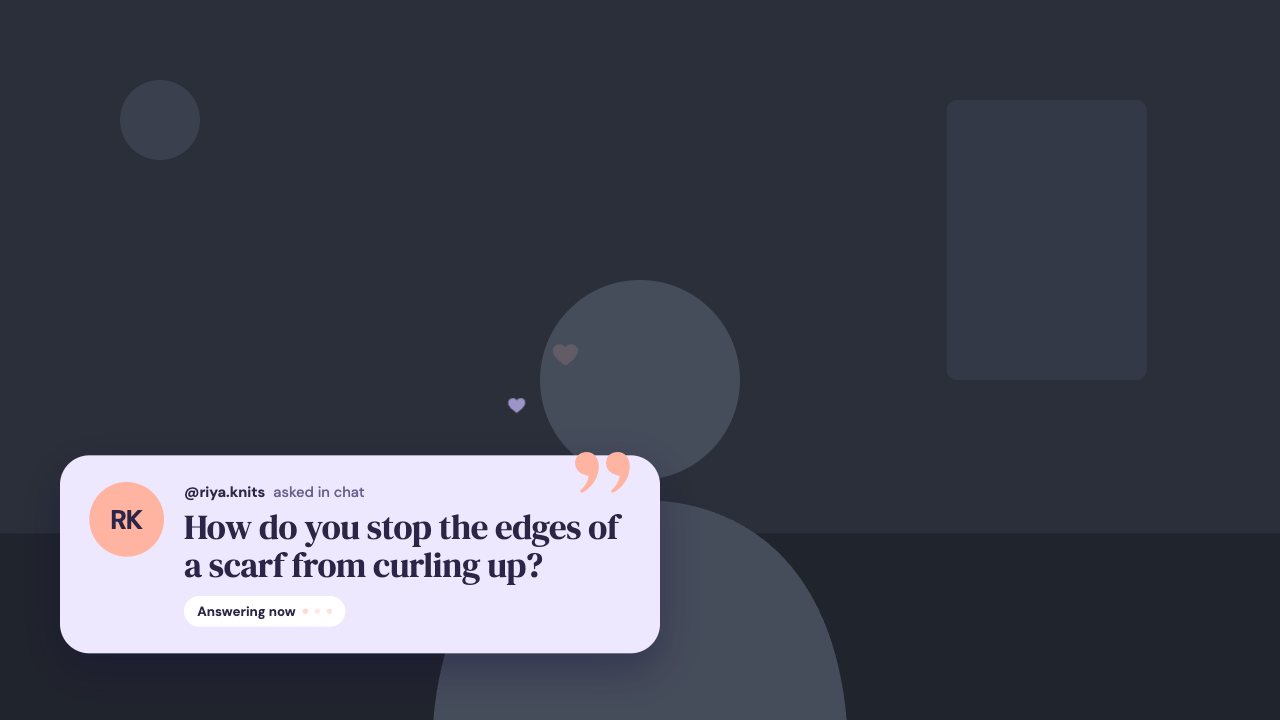
Soft Pastel q&a card
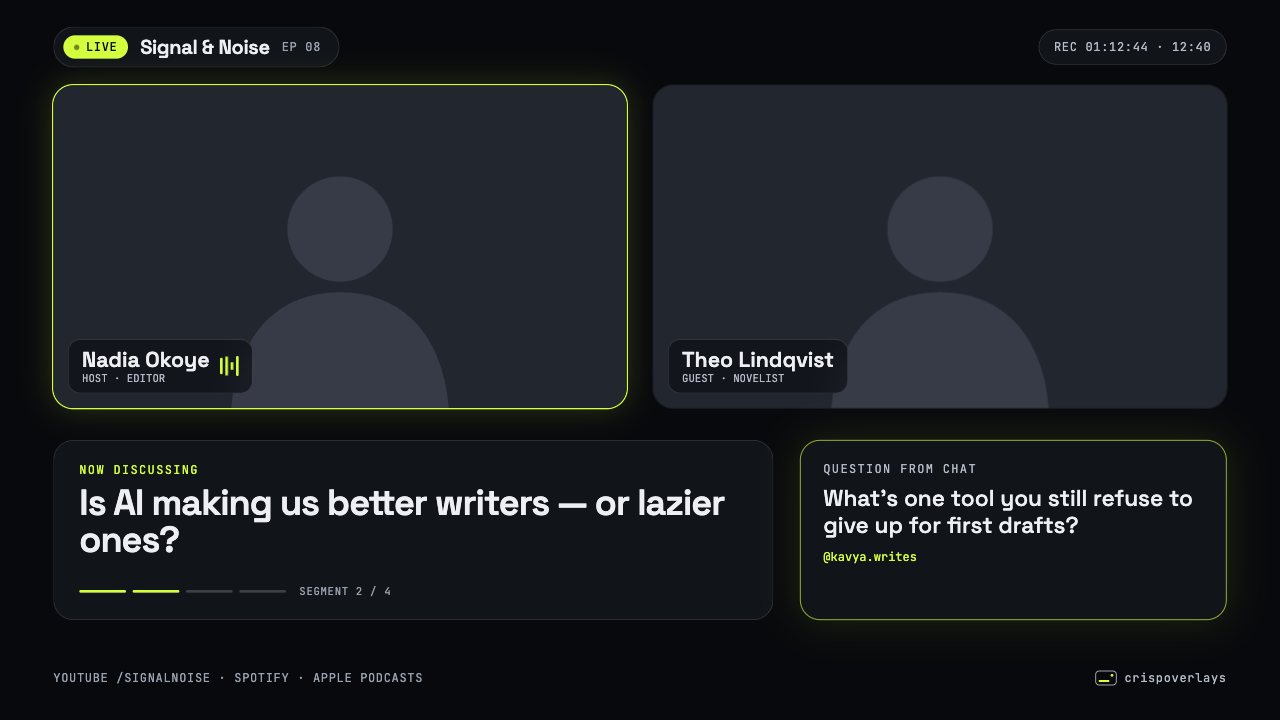
Nightglass podcast layout

Candy Pop social overlay
Twitch Studio: questions
How do I add an overlay to Twitch Studio?
Copy your browser source URL from CrispOverlays. In Twitch Studio, edit a scene and add a layer → Embed Webpage. Paste the URL and size it to the full canvas. Go live. Edits appear instantly.
Do I need a plugin for Twitch Studio?
No. CrispOverlays uses the built-in browser source, so there is nothing to download or install.
What size should the browser source be?
Use 1920 × 1080 for a 1080p stream or 3840 × 2160 for 4K. For vertical streams use 1080 × 1920.
Add your first overlay to Twitch Studio
Free plan · No download · Works in any app with a browser source.
Create your first overlay — free