Skip to content
CrispOverlays
Sticker podcast bundle overlay for OBS and Streamlabs — Podcast bundle · Sticker
Podcast bundle · Sticker

Sticker podcast layout overlay for OBS & Streamlabs

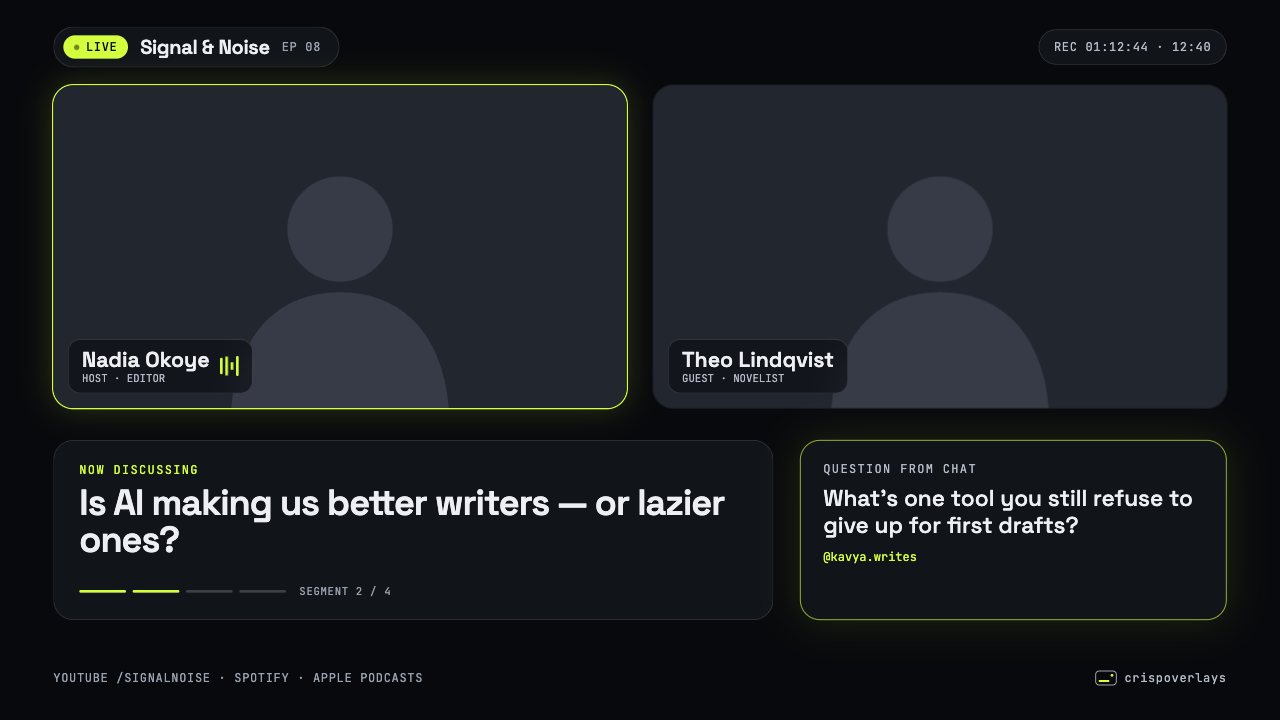
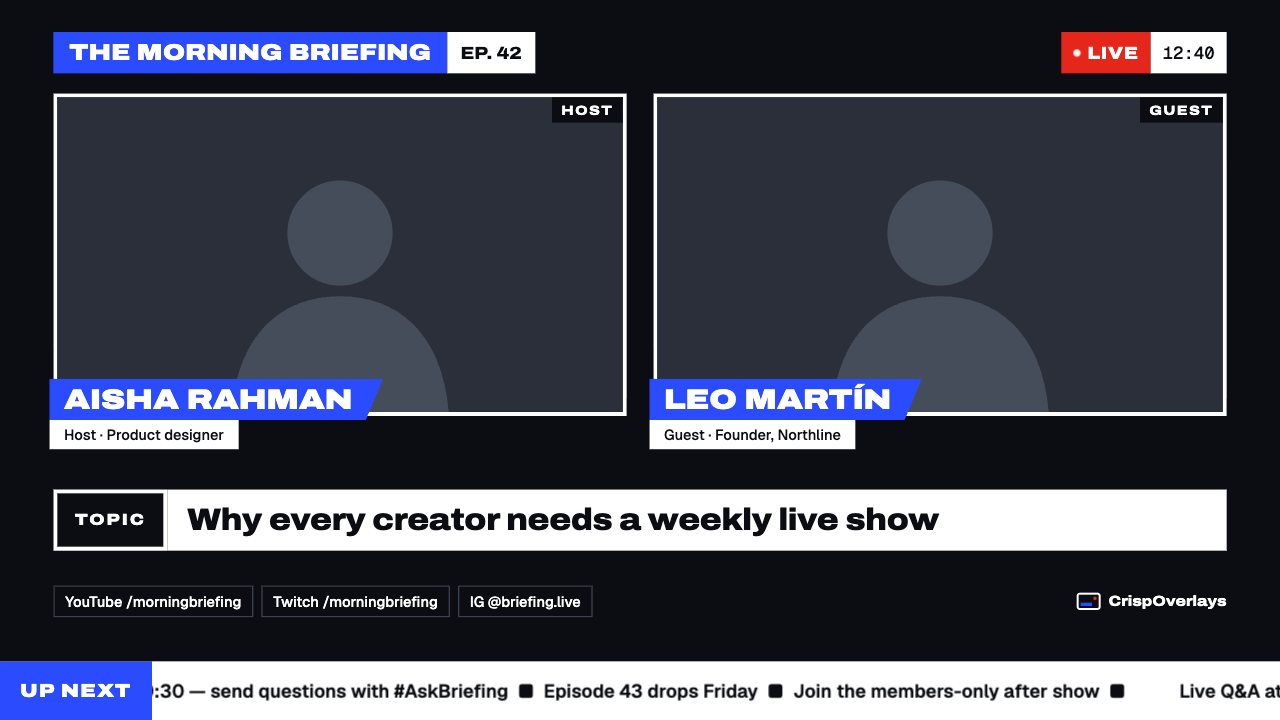
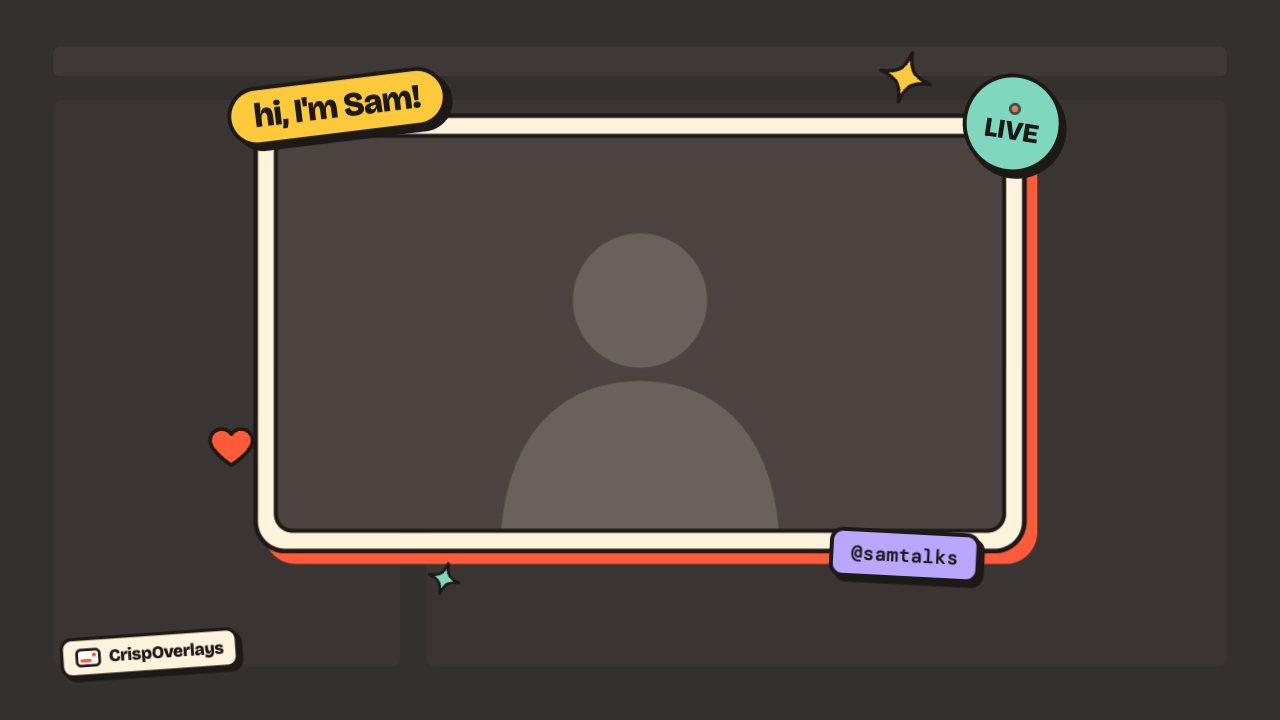
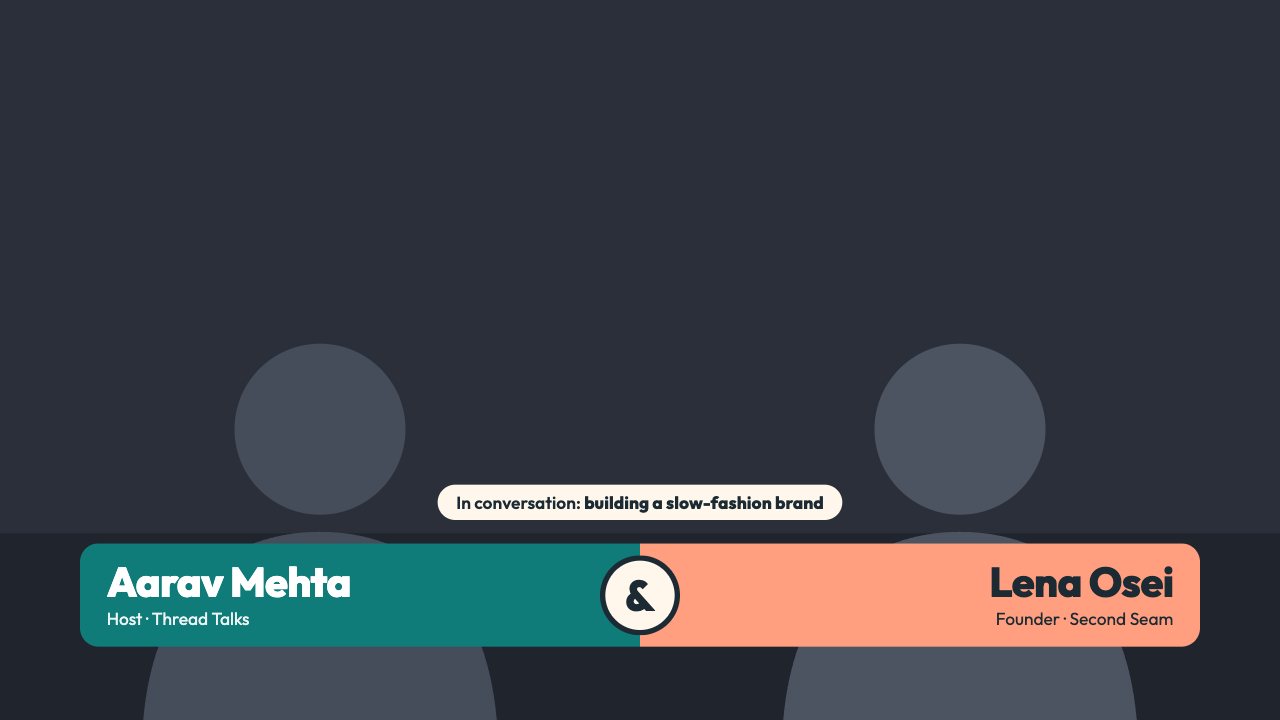
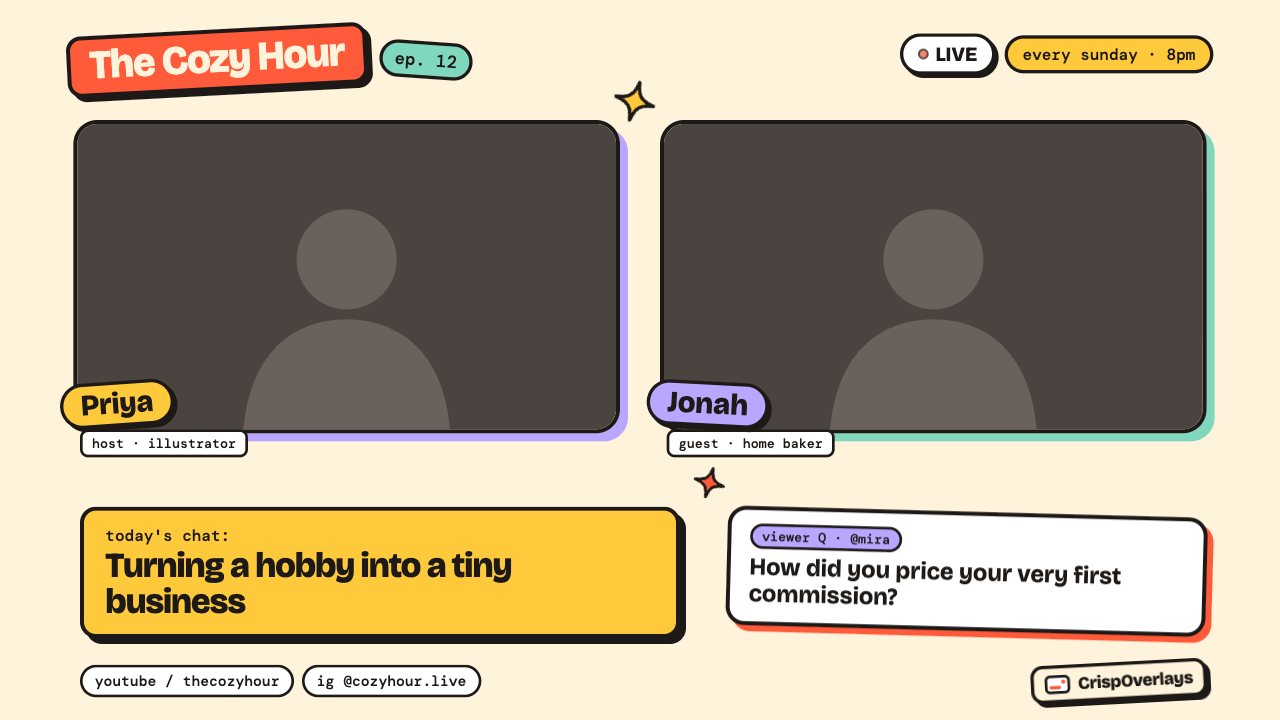
A cozy two-camera show layout made of stickers: title, schedule, names, topic note and a viewer question.

Included in Studio

Editable settings
18
Live controls
2
Resolution
1080p & 4K
Background
Transparent

About this podcast layout

Sticker makes a two-camera show feel handmade: tilted camera cards, sticker name tags, a yellow topic note and a viewer question bubble.

Great for crafty, cosy and lifestyle podcasts.

Change the topic, guest names and viewer question from the remote, and track segments and recording time live.

What you can customise

Text & content

  • Show name
  • Episode
  • Live label
  • Schedule
  • Left name
  • Left role
  • Right name
  • Right role
  • Topic label
  • Topic
  • Show viewer question
  • Question tag
  • Question
  • Social handles

Colours & fonts

  • Accent
  • Topic note colour
  • Show channel tag
  • Channel tag

Sticker podcast layout: questions

How do I add the Sticker podcast layout to OBS?

Click “Use this overlay” and sign in — it’s added to your first stream. Copy your stream’s browser source URL. In OBS Studio or Streamlabs, add a Browser source, paste the URL and set 1920 × 1080. Edit the overlay in CrispOverlays or on your phone — changes appear live.

Can I change the Sticker podcast layout while I’m live?

Yes. All 18 settings — show name, episode, live label, schedule and more — update on stream the moment you change them, from your computer or phone.

Is the Sticker podcast layout free?

It’s included in studio. You can preview it free and upgrade from $2.99/month.

Can it use my brand colours?

Yes. Switch it to “My brand” and its 2 brand colours follow your brand kit. Switch back any time to the original colours.

Put the Sticker podcast layout on your stream

Free plan · No download · Works in any app with a browser source.

Create your first overlay — free